A bundle from the archive is a DOS program; it needs a player. Here are the two from the WhereQ Universe, and then the places worth knowing across the rest of the DOS world.
1.0Two ways to run these games
The bundles here are DOS programs; something has to run them. There are two players for that, and they are built for two kinds of person — WhereQ-DOSBox is the open-source emulator you can pull apart, and A-DOS is the finished app coming to Google Play.
WhereQ-DOSBox
OPEN SOURCE · ANDROID
A native DOS emulator for Android, built in the open — the whole thing is on GitHub to read, build and fork.
You install the signed APK from the repository: turn on installs from outside the store, and fetch each new build yourself.
It keeps a service running in the background the way a development build does, so it stays a little busy even after you set it down.
Press Play and it runs — close to the metal, and happiest in the hands of someone who likes to look under the hood.
Android 6.0 or newer. The checksum sits beside the file on GitHub Releases.
The finished DOS player: one tap from Google Play and it is installed, trusted and kept current on its own — nothing to sideload, nothing to manage.
It bows out the moment you leave — no background service, no drain on memory or battery, just the game while you are playing it.
The same bundles and the same one-tap setup as the emulator, with every rough edge sanded smooth.
The one most people will simply want: open it, pick a game, play.
Android 5.0 or newer.
▶ Coming soon to Google Play
Not published yet — the listing goes live when the app is approved.
2.0A run through WhereQ-DOSBox
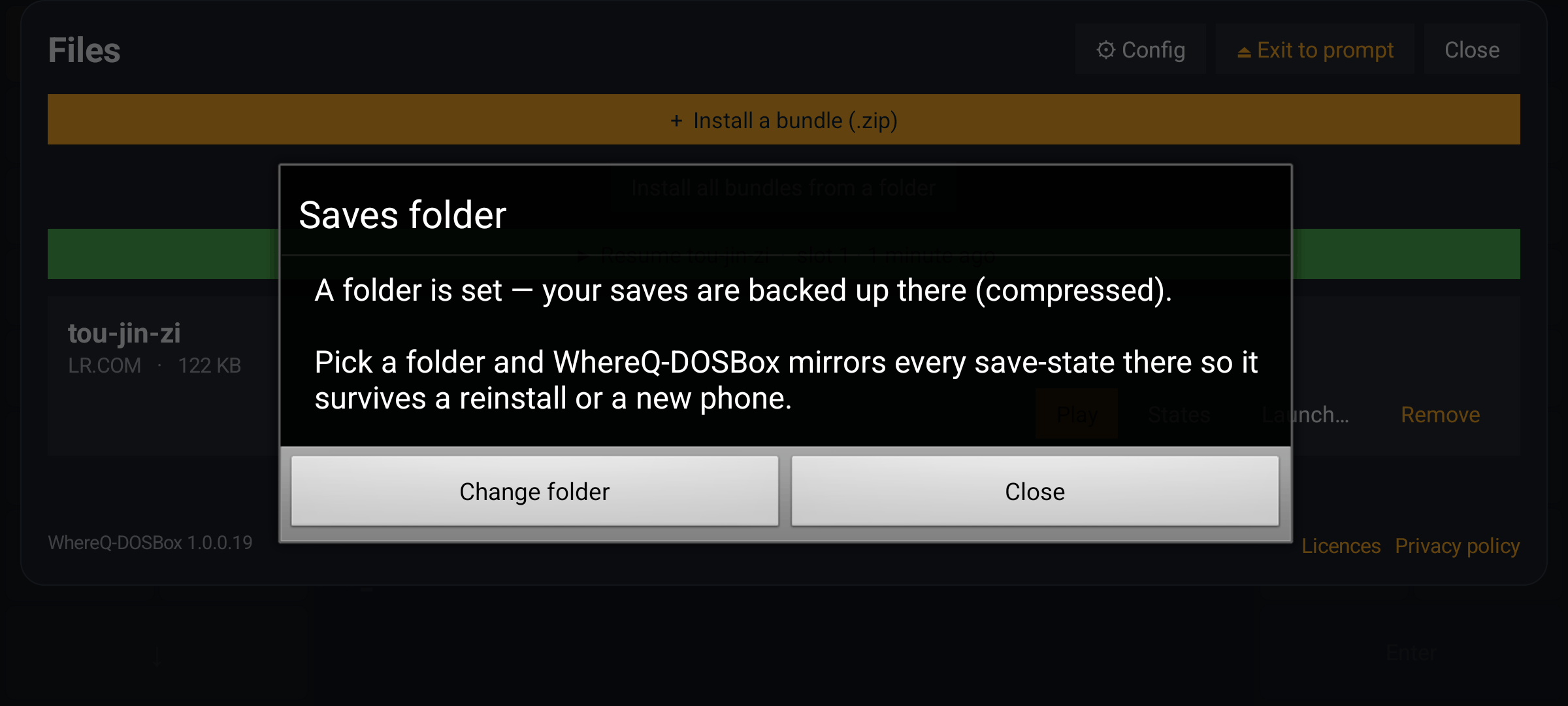
The whole route in, on WhereQ-DOSBox 1.0.0.19, using 偷金子 (Lode Runner) — the game the front page shows. Import the bundle, press Play, and you are in; Game Mode lays a d-pad and mouse over the screen, and the emulator keeps running when you switch away. Save states freeze the whole machine, and a folder of your own keeps them safe when the app is uninstalled.
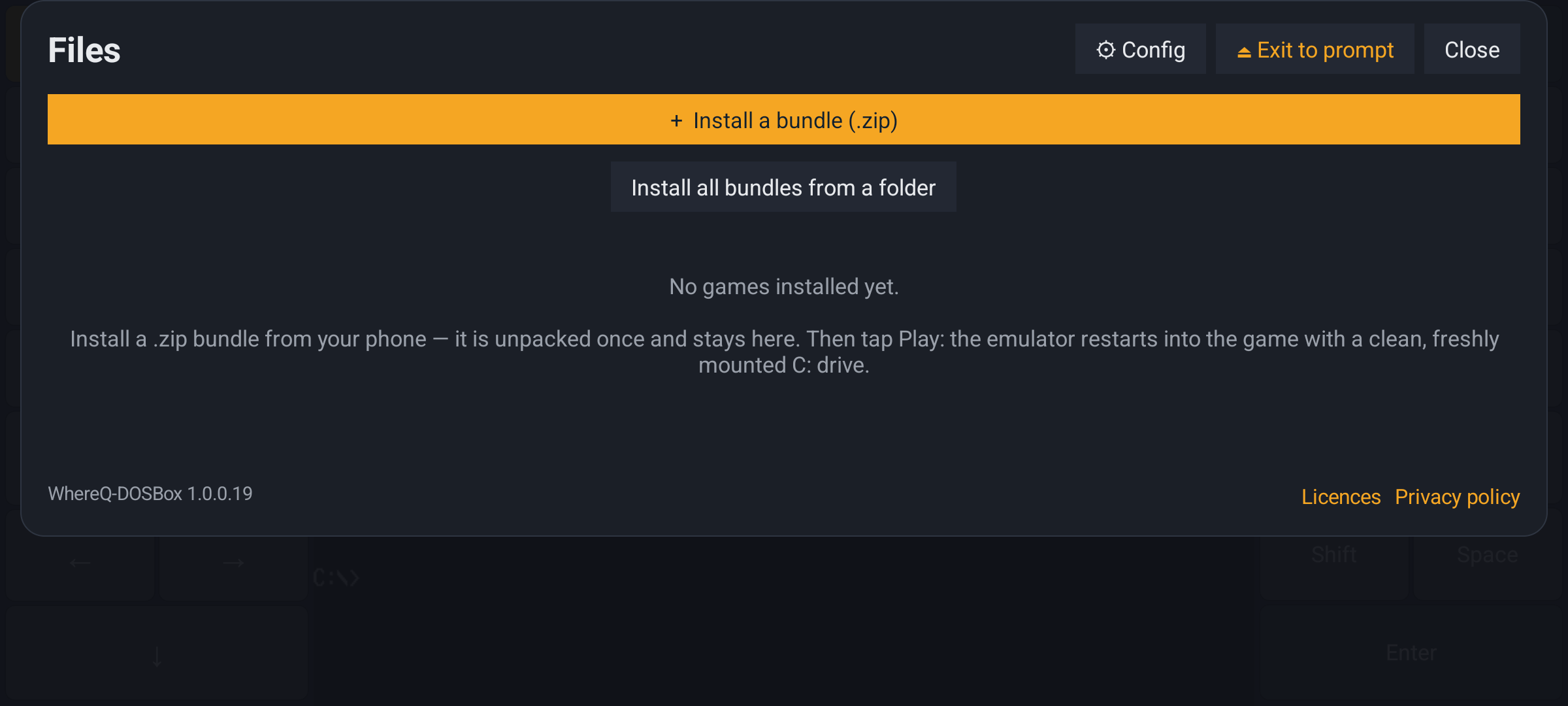
01A fresh install: the Files panel is empty, and the gold “Install a bundle (.zip)” button starts the import.
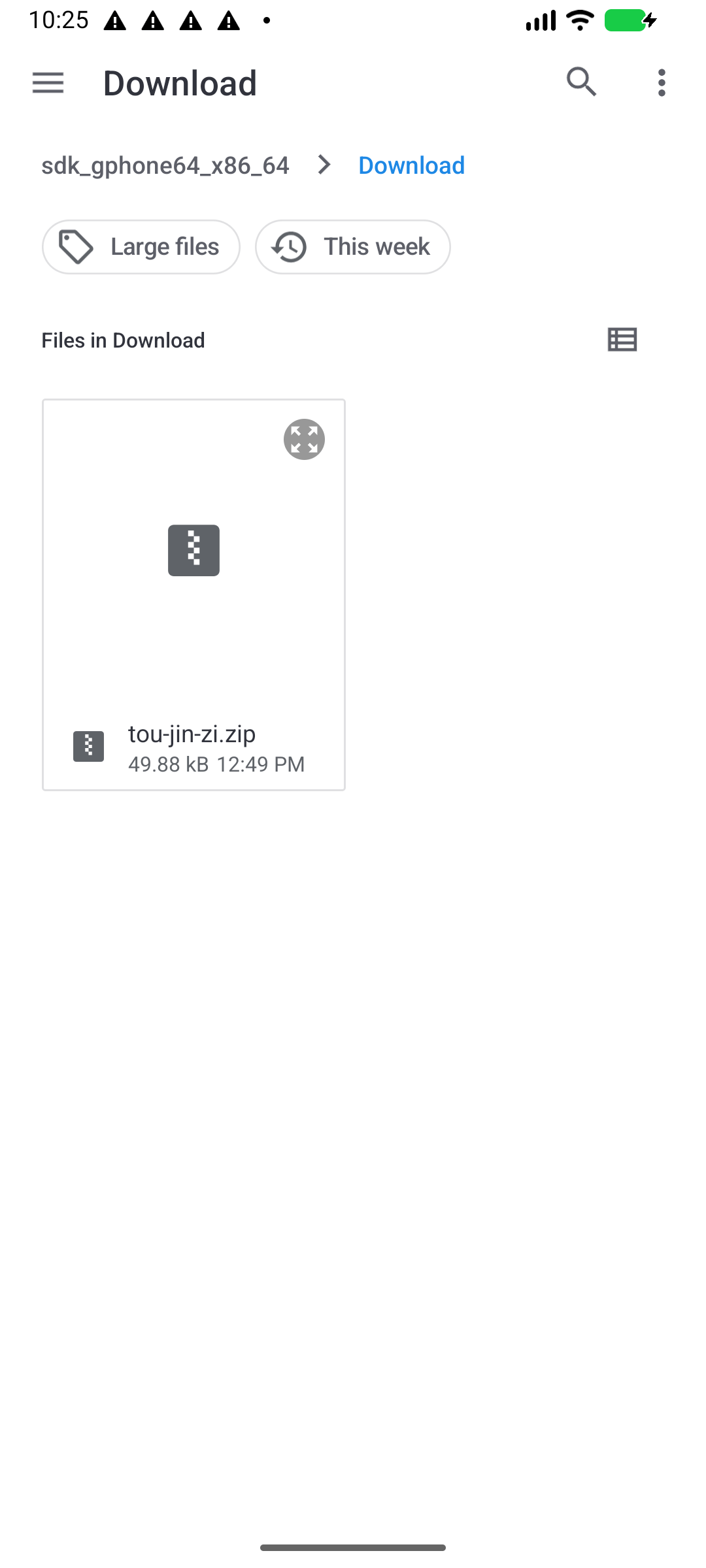
02The Android file picker on Downloads, with tou-jin-zi.zip selected — the bundle the PC Legends page for 偷金子 (Lode Runner) links to.
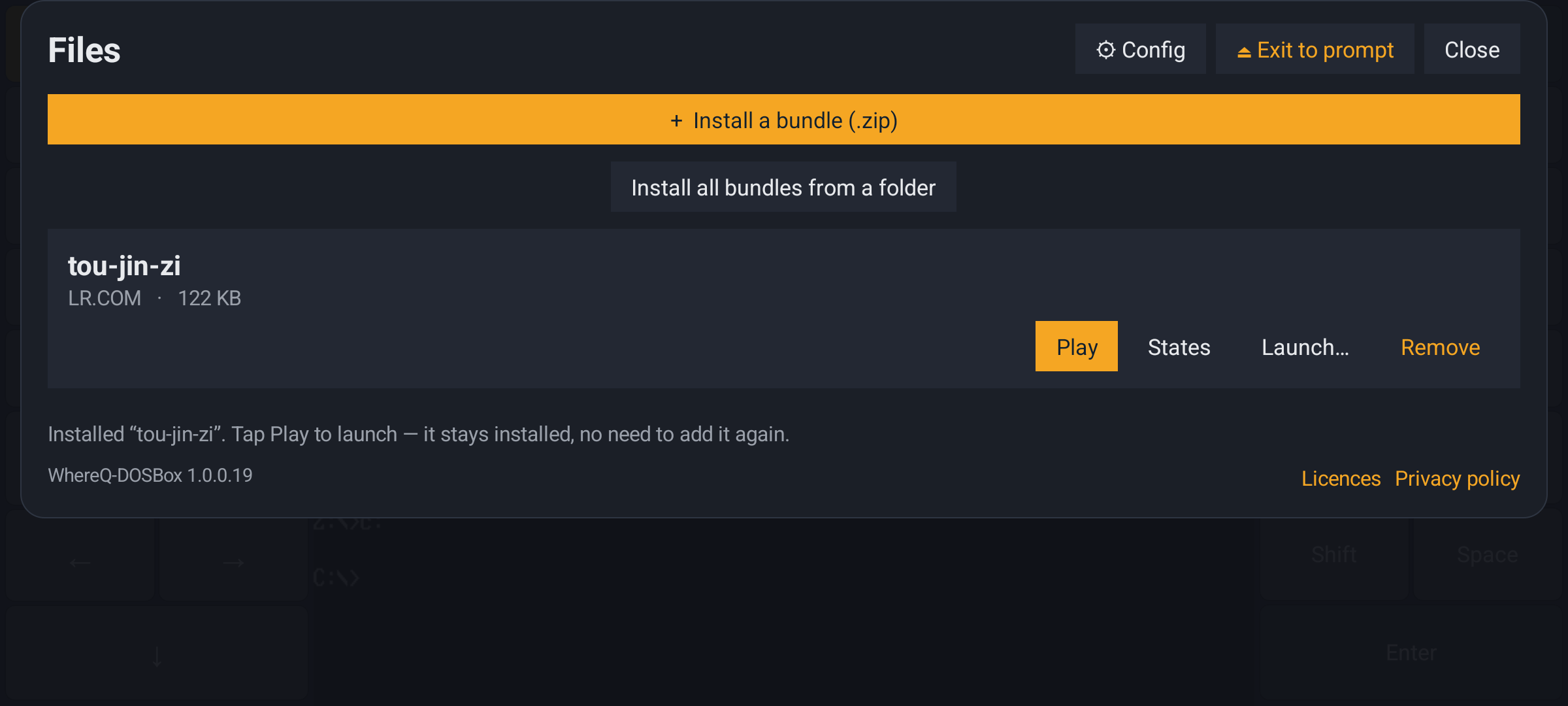
03Installed: its entry point LR.COM, its size, and the Play / States / Launch… / Remove buttons.
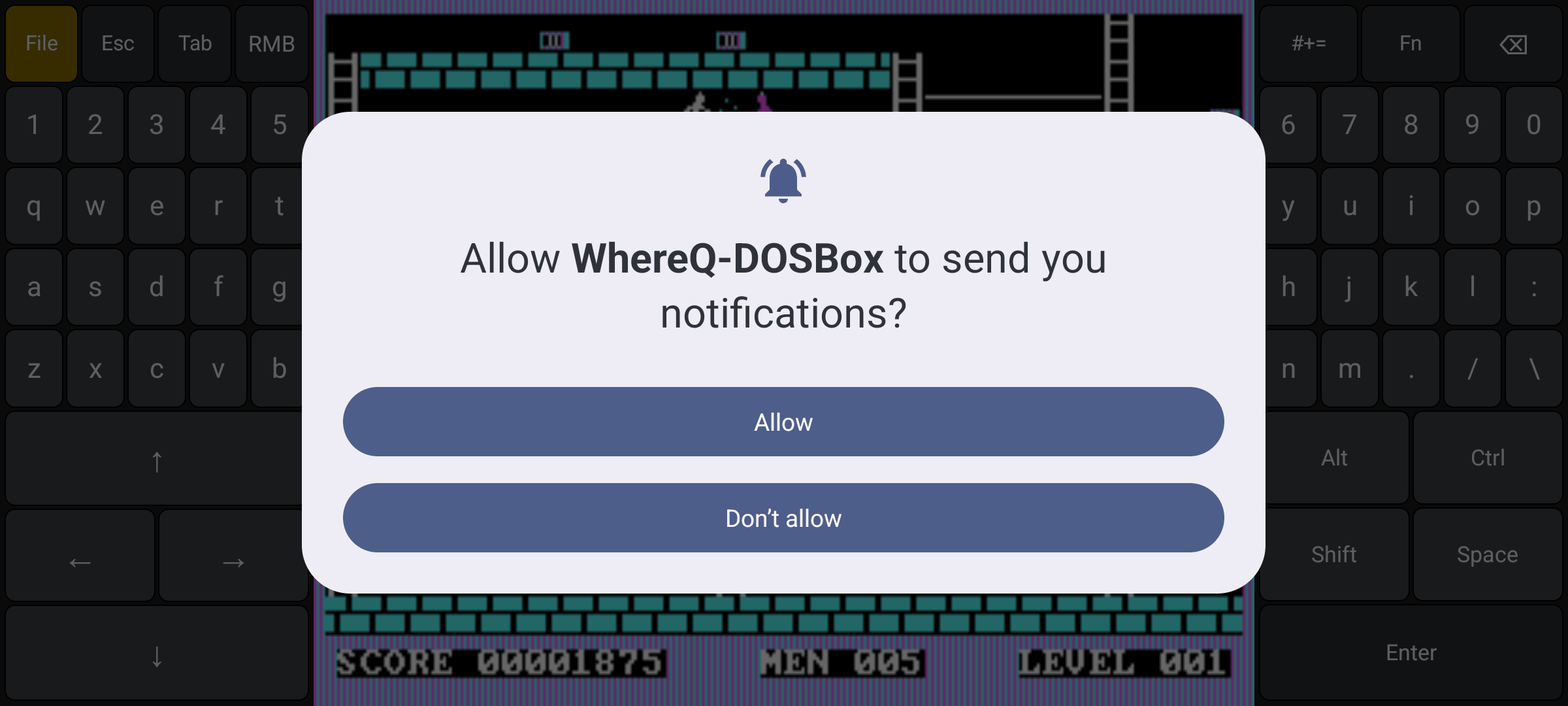
04Android asks once whether the app may send notifications — the foreground service needs them, and nothing else is asked.
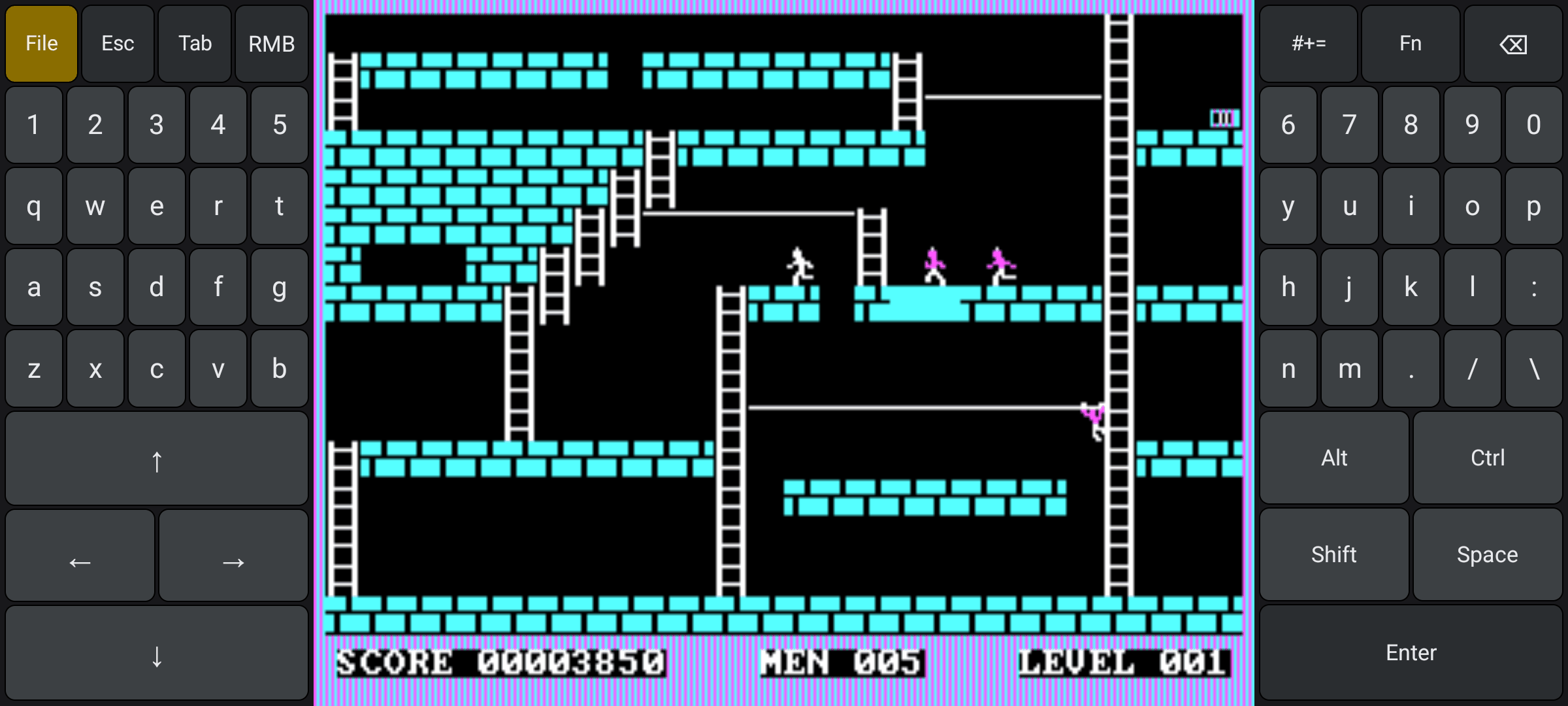
05偷金子 (Lode Runner) running inside WhereQ-DOSBox, framed by the on-screen keyboard.
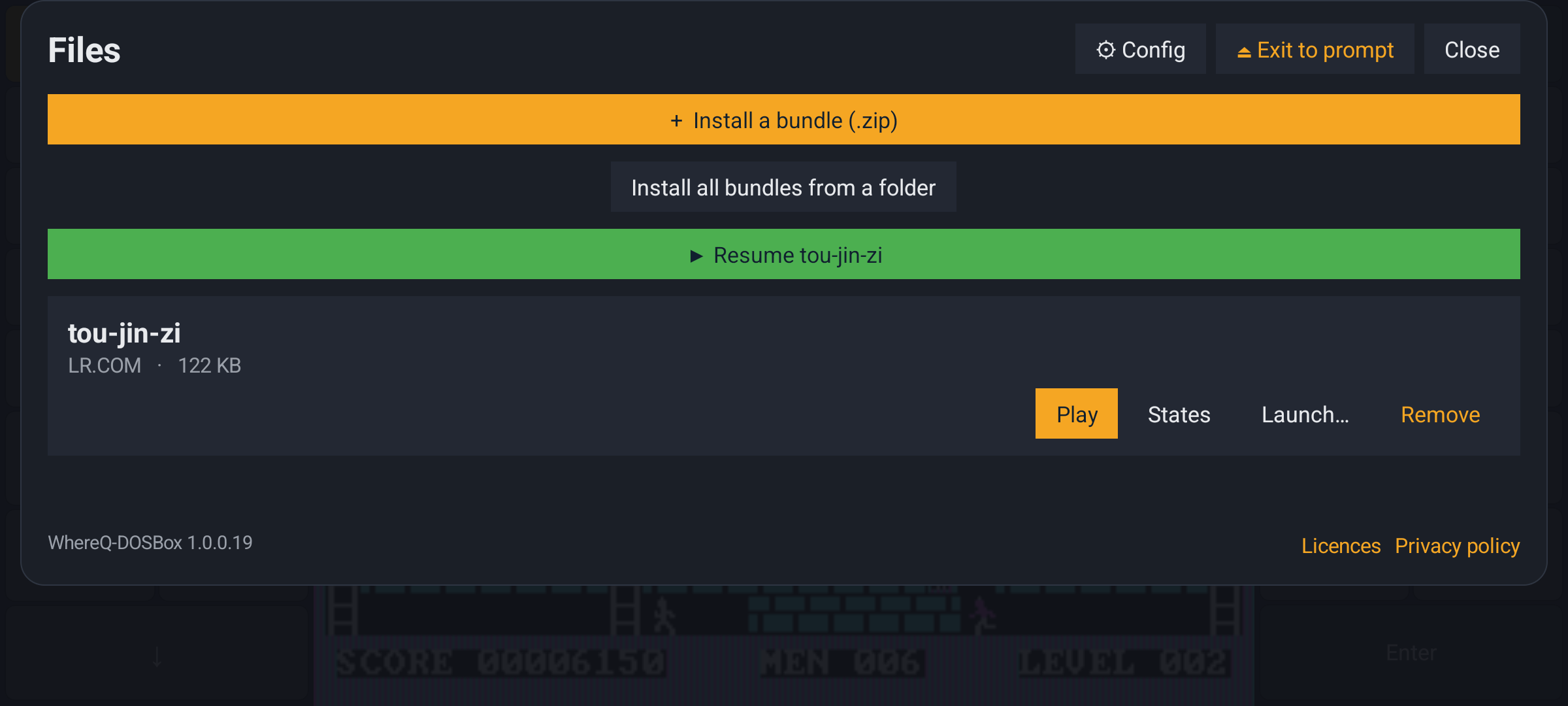
06The Files panel over the running game, with a green Resume tou-jin-zi line above the list.
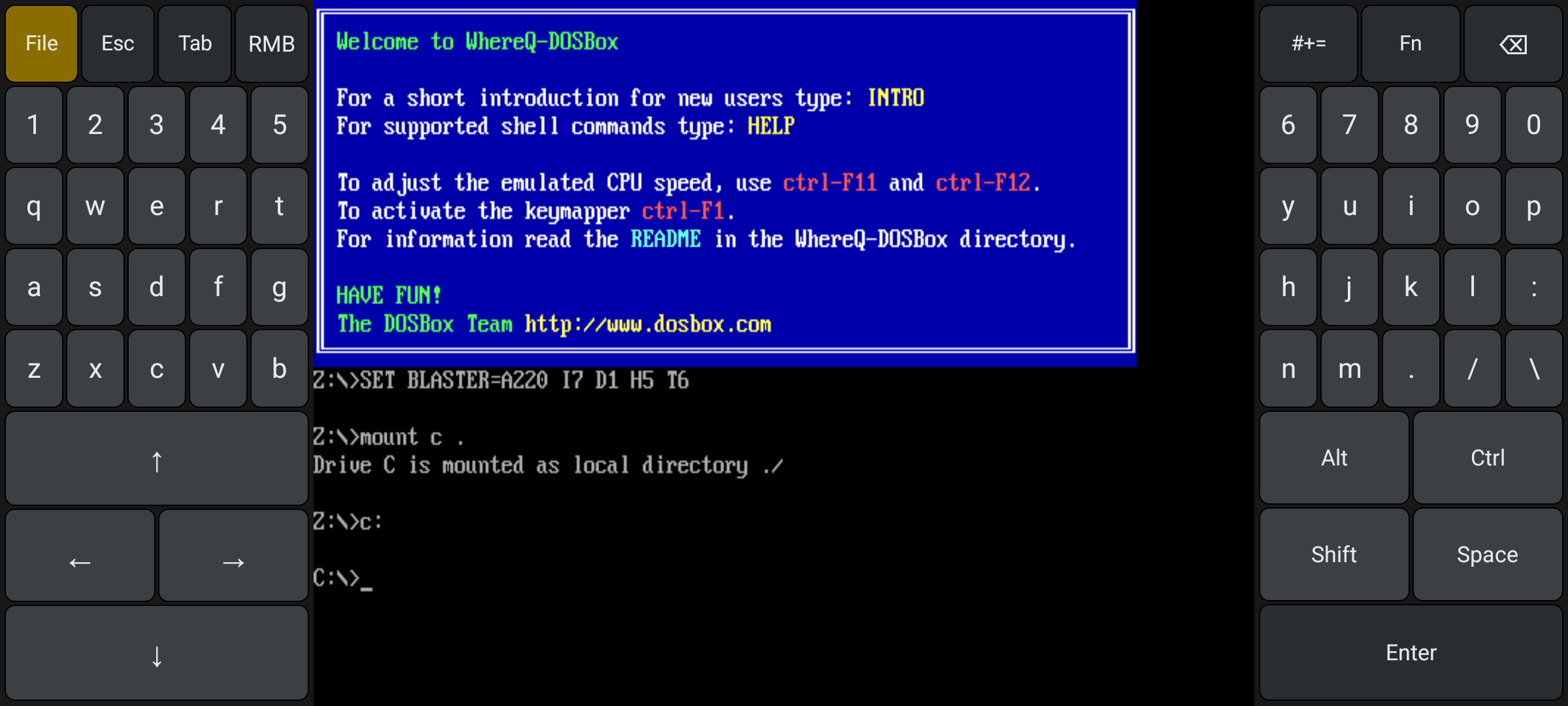
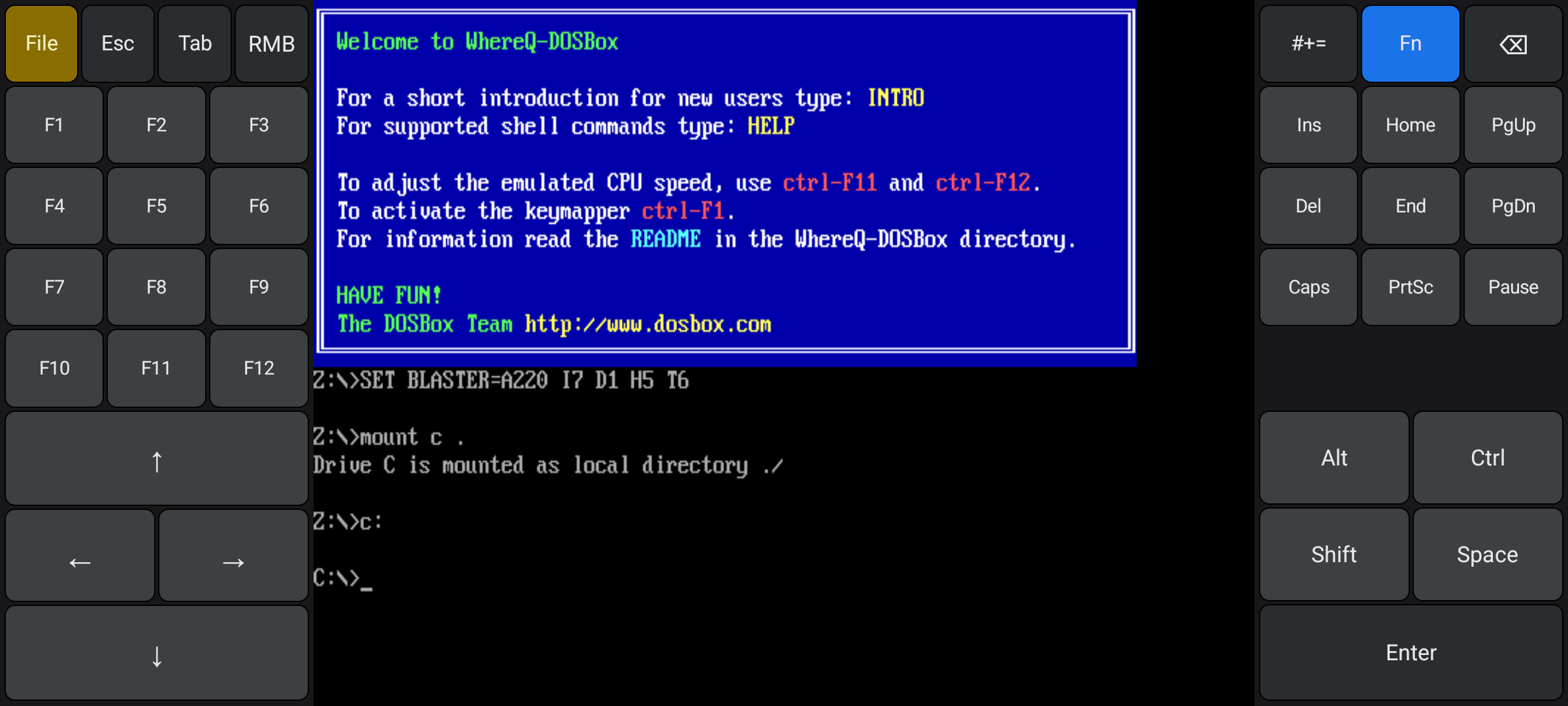
07The DOSBox banner and the C:> prompt, with the on-screen keyboard below.
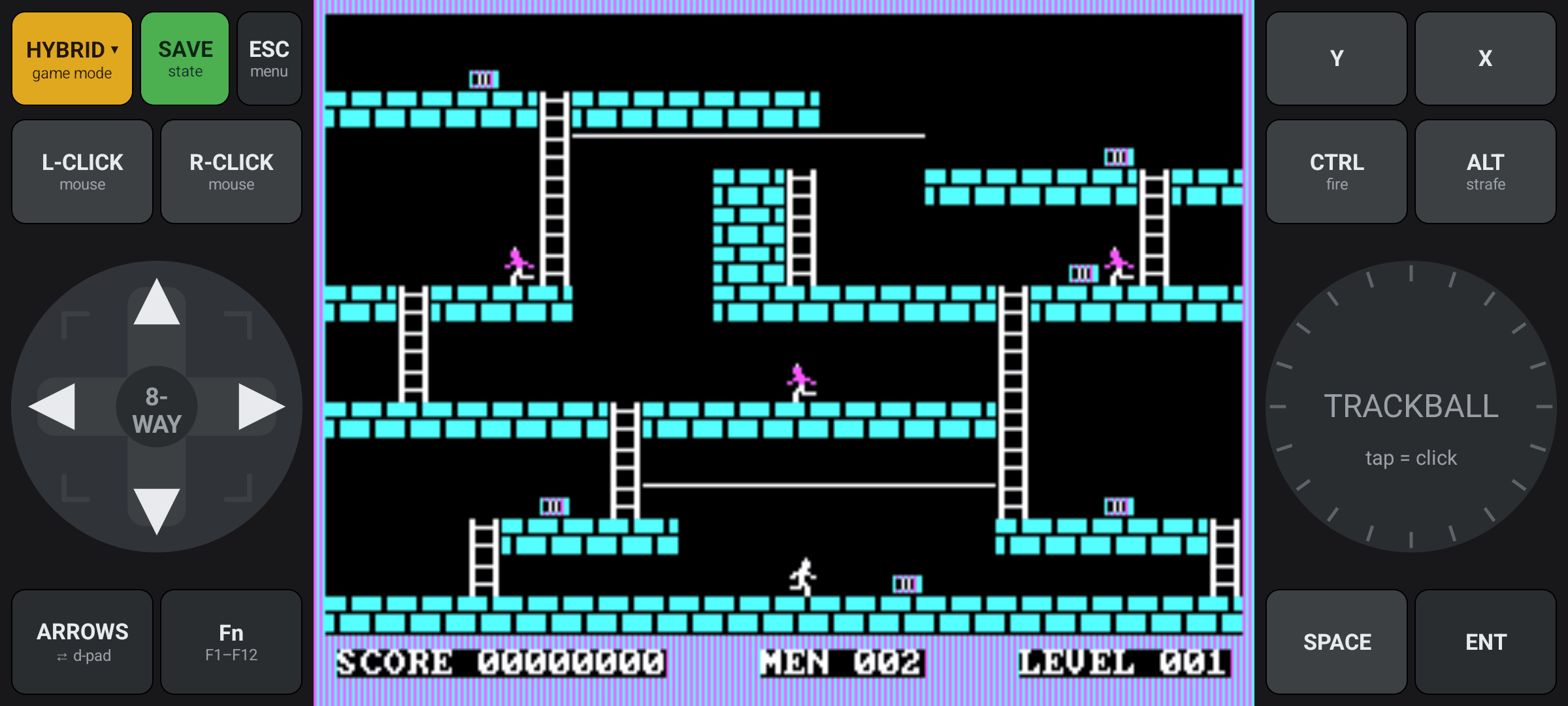
08Game Mode, Hybrid profile: the 8-way d-pad, L/R-CLICK and the trackball, with the game still running behind the pads.
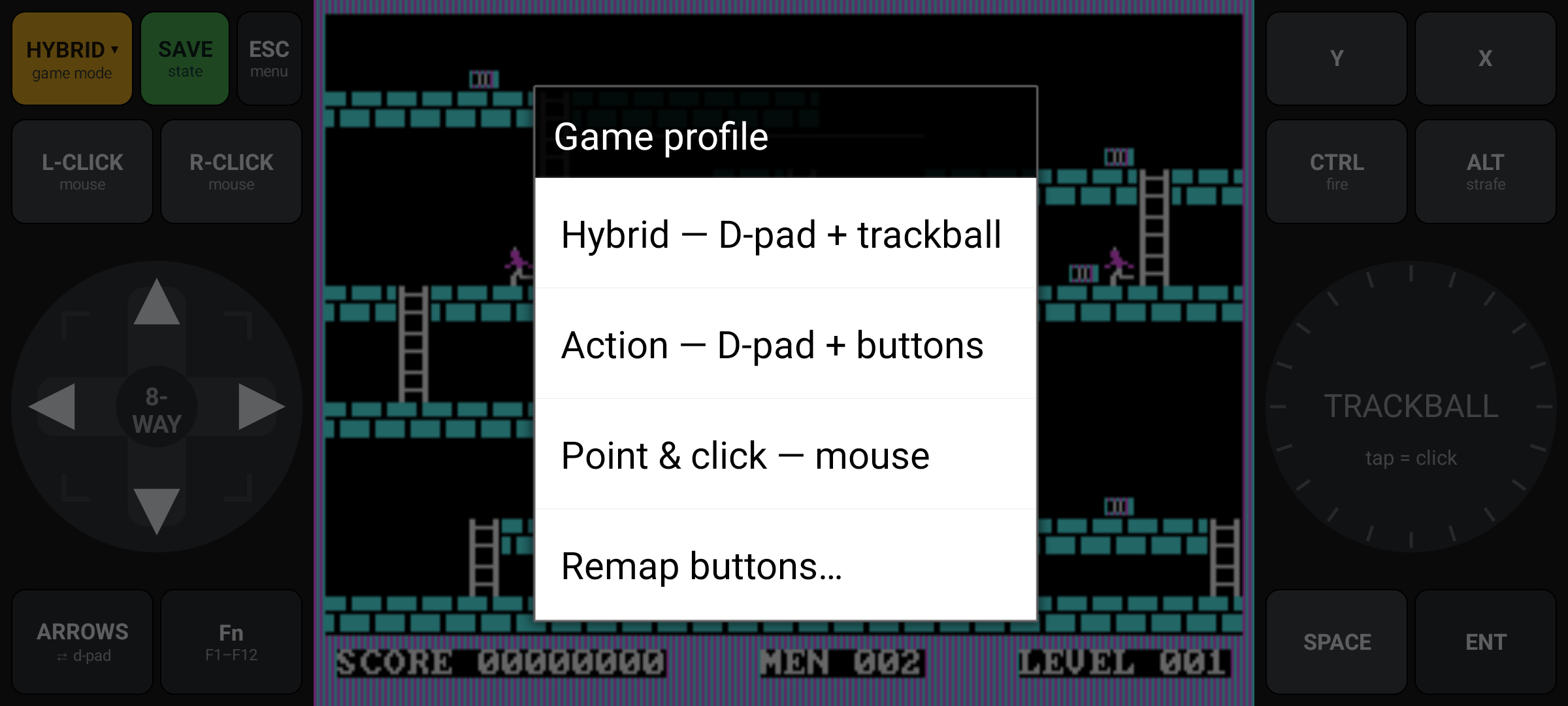
09A long press on the gold profile button opens the picker: Hybrid, Action, Point & click, and Remap buttons…
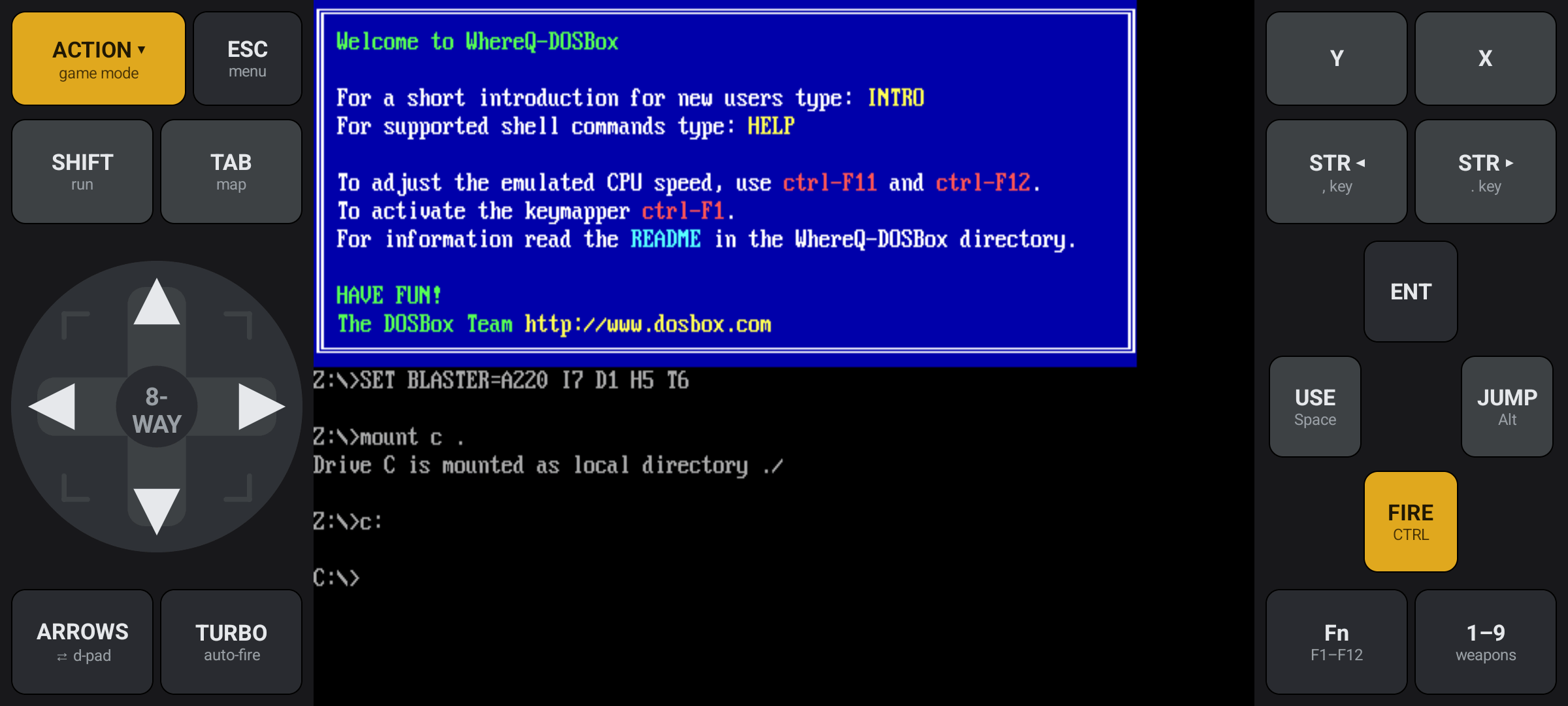
10The Action profile: the d-pad on the left, and the FIRE / JUMP / USE / ENT diamond on the right.
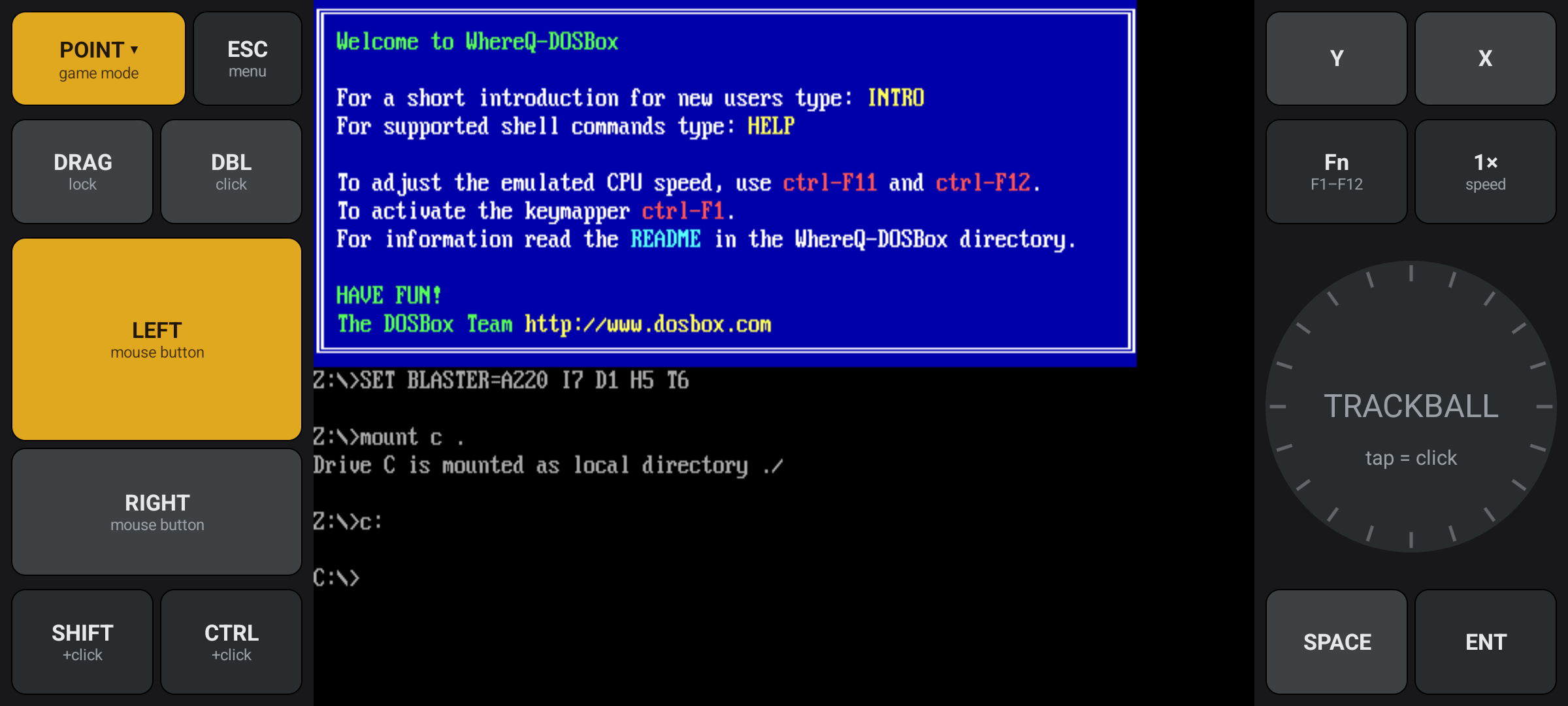
11The Point & click profile: big LEFT and RIGHT mouse buttons instead of a d-pad, and the trackball.
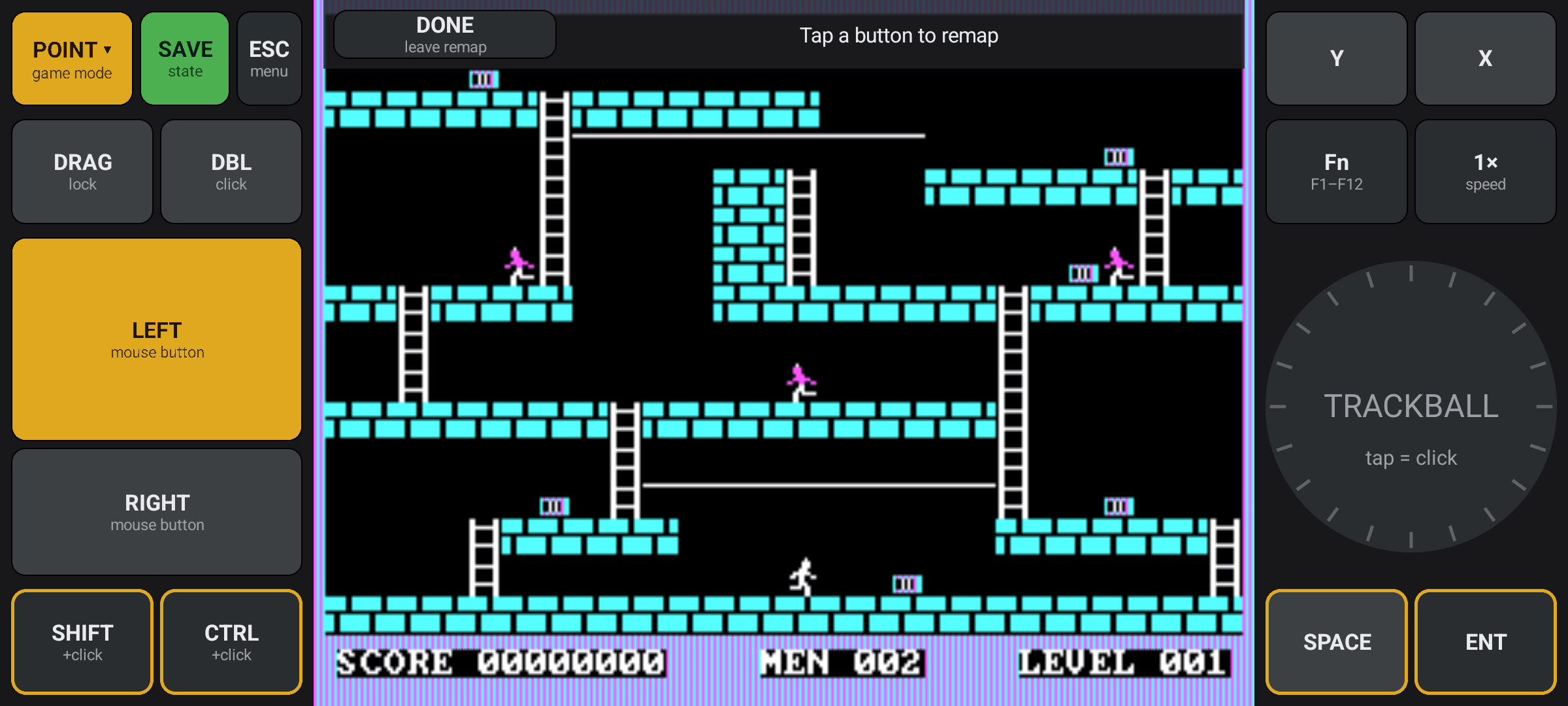
12Remap mode: the buttons you can change are outlined in gold, under a banner that says Tap a button to remap.
13Back to the plain keyboard pads after the reverse Konami code — the game keeps running underneath.
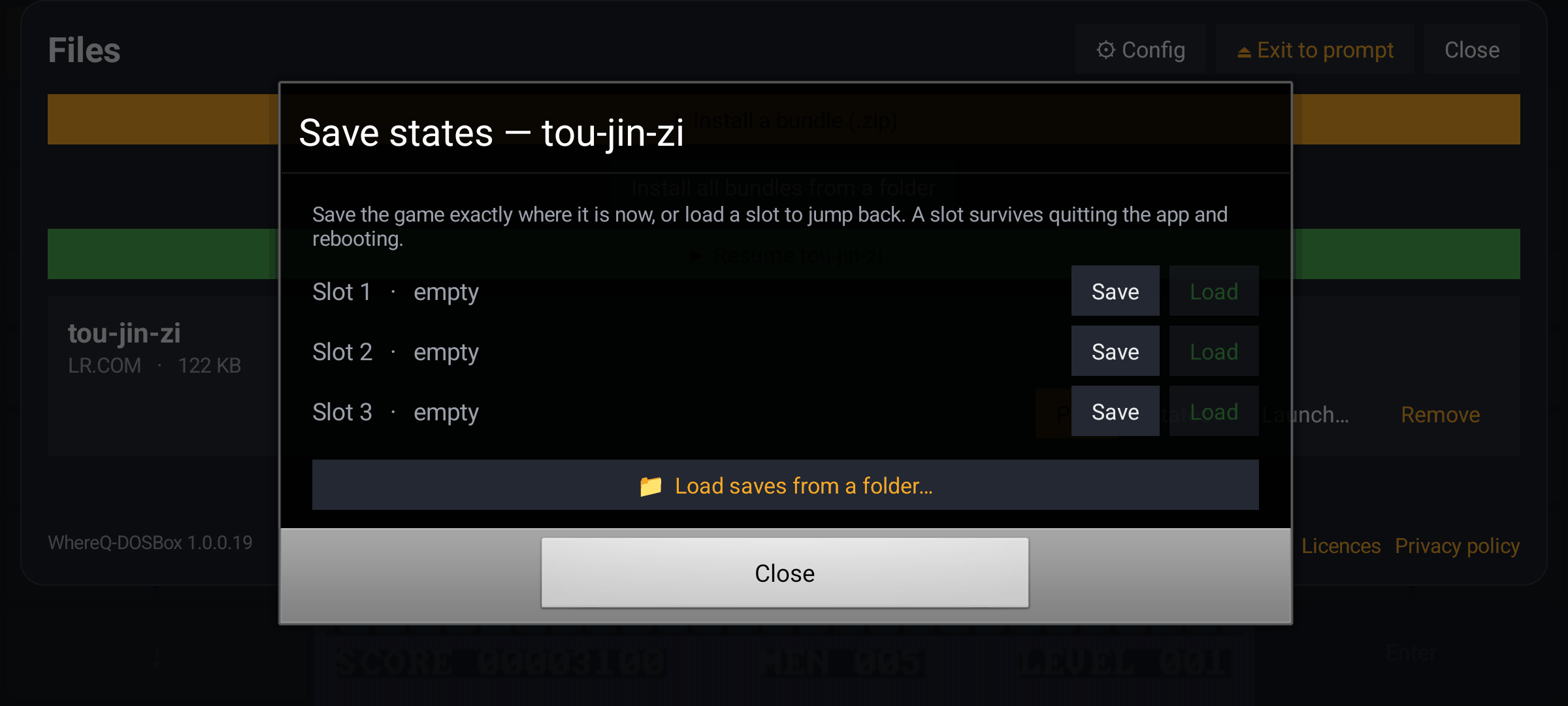
14The Save states sheet: three empty slots. Open it with States, next to the game.
15After the first save, the app asks whether to keep a second copy of your saves in a folder of your own.
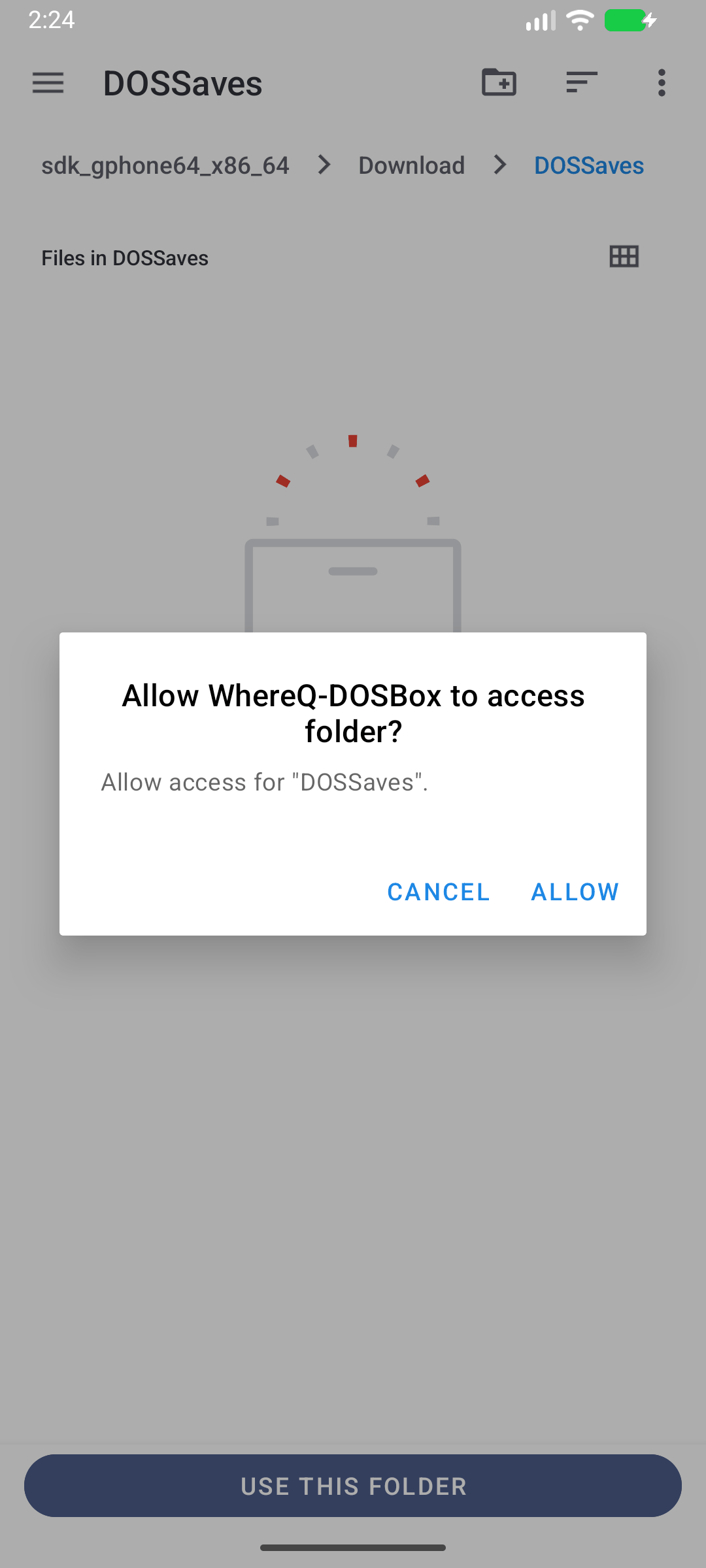
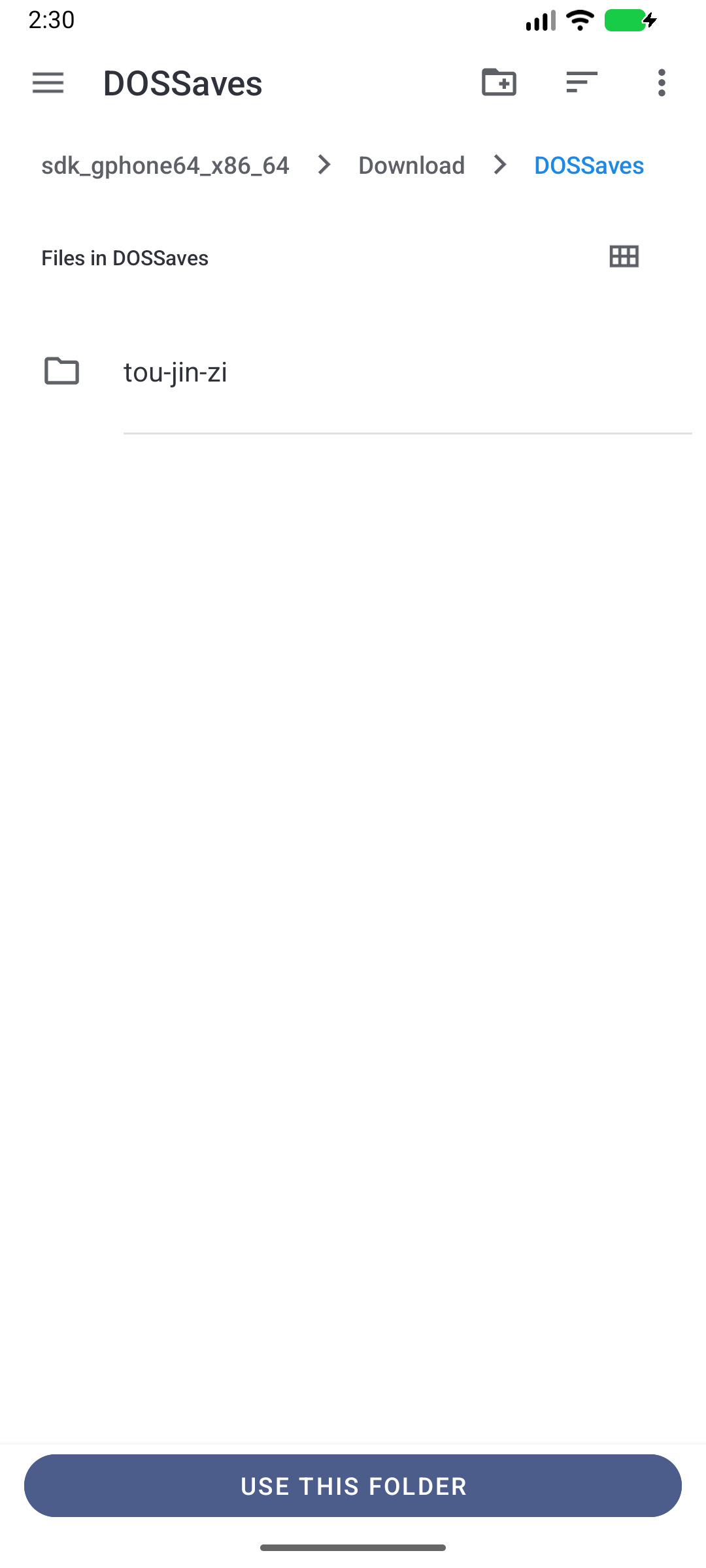
16Android will not hand an app the whole Download folder, so the app asks for one of its own — and then for access to it.
17The Files panel now carries a Resume line: tou-jin-zi · slot 1 · just now.
18Slot 1 · 1 minute ago — and Load is live. Load puts the whole machine back exactly where it was.
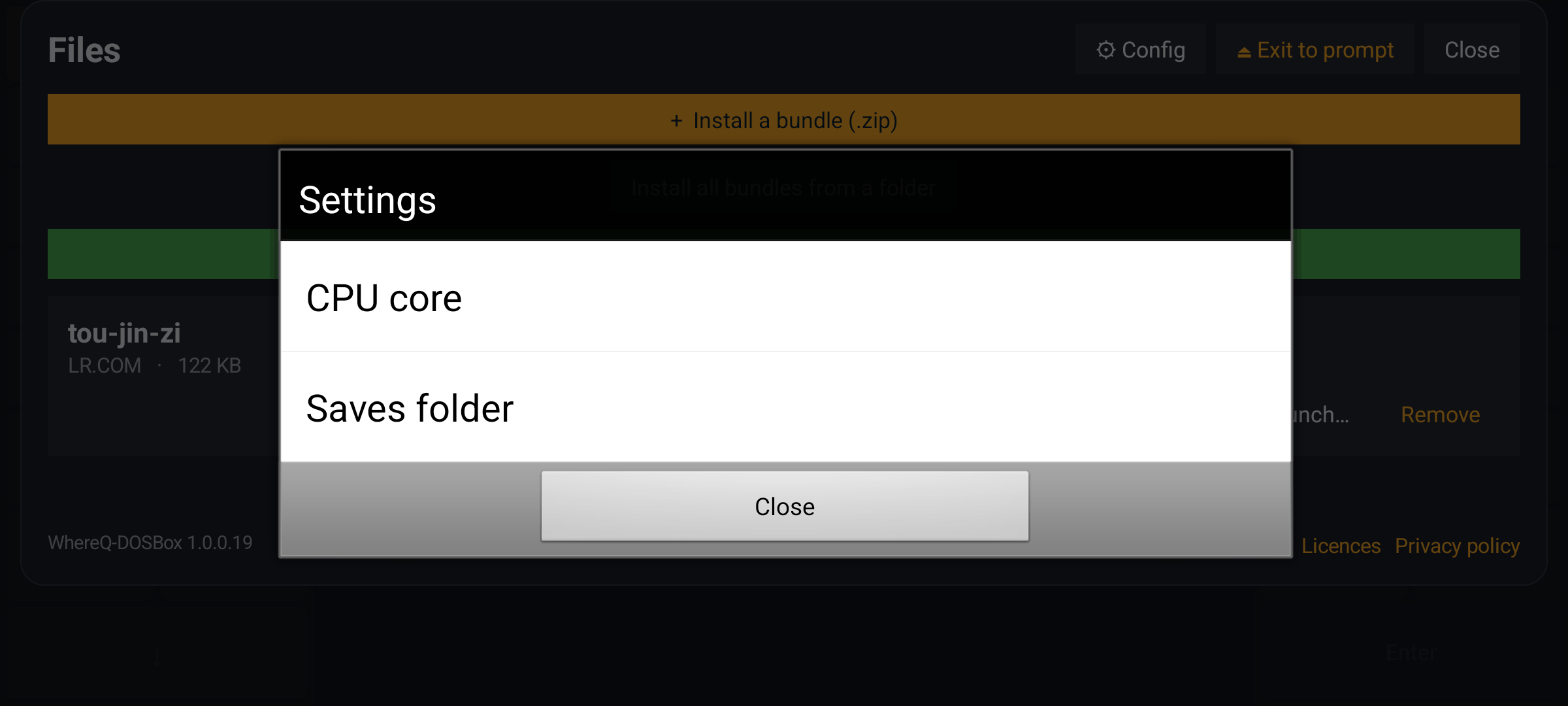
19The Settings dialog, and the Saves folder row that points at the folder you chose.
20With a folder set, every save-state is mirrored there, compressed, next to the game itself.
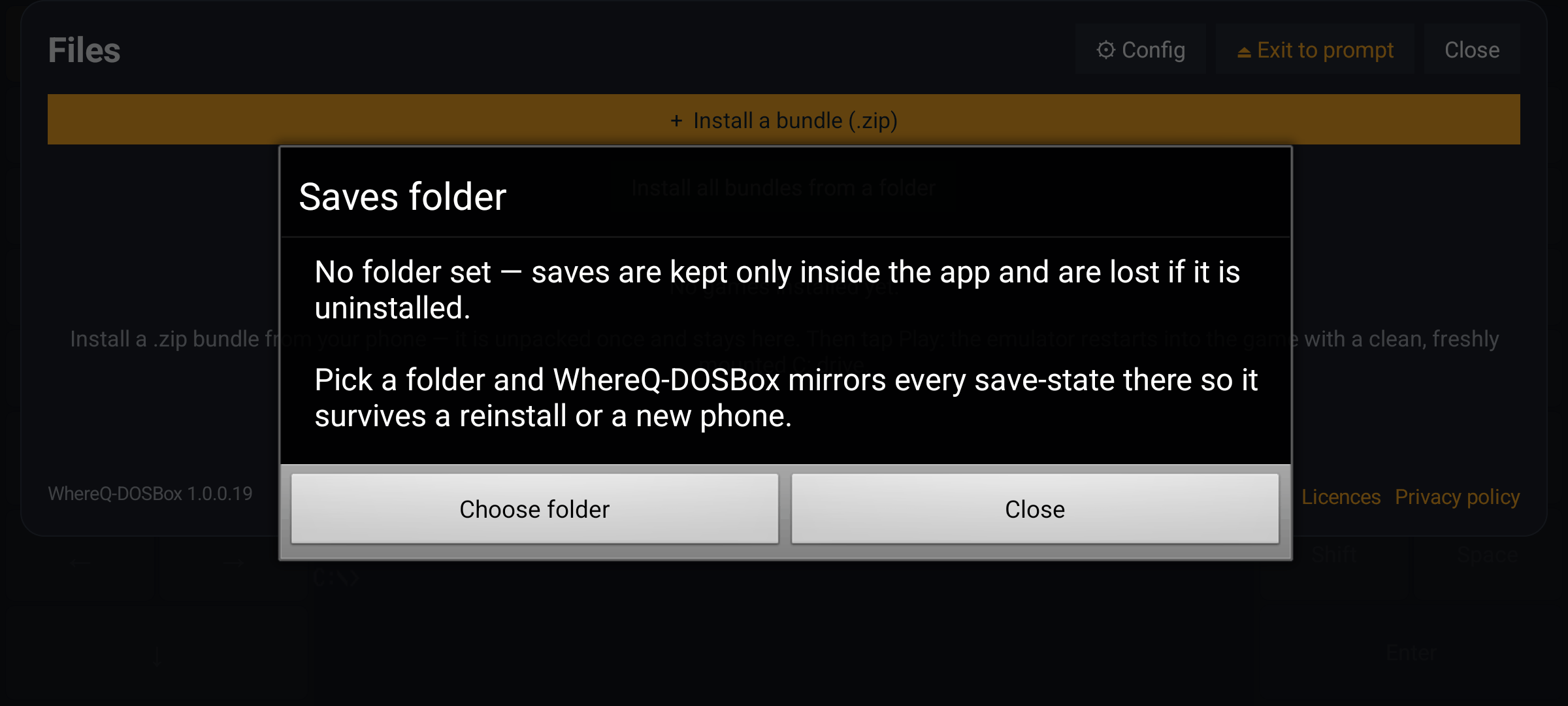
21With no folder set, the saves live only inside the app — and go with it when you uninstall.
22The folder on the phone after the app was uninstalled. The game is still there, because it was never inside the app.
23The app looks inside the folder and offers to bring back what is not installed.
24Restored 1 game(s). Your saves are ready.
25The restored slot still says 6 minutes ago. A save made before the reinstall still knows when it was made.
26The punctuation layer of the on-screen keyboard, with the #+= key lit.
27The function layer, with the Fn key lit — F1 to F12.
28The WhereQ-DOSBox icon on the launcher, the way you find it after installing.
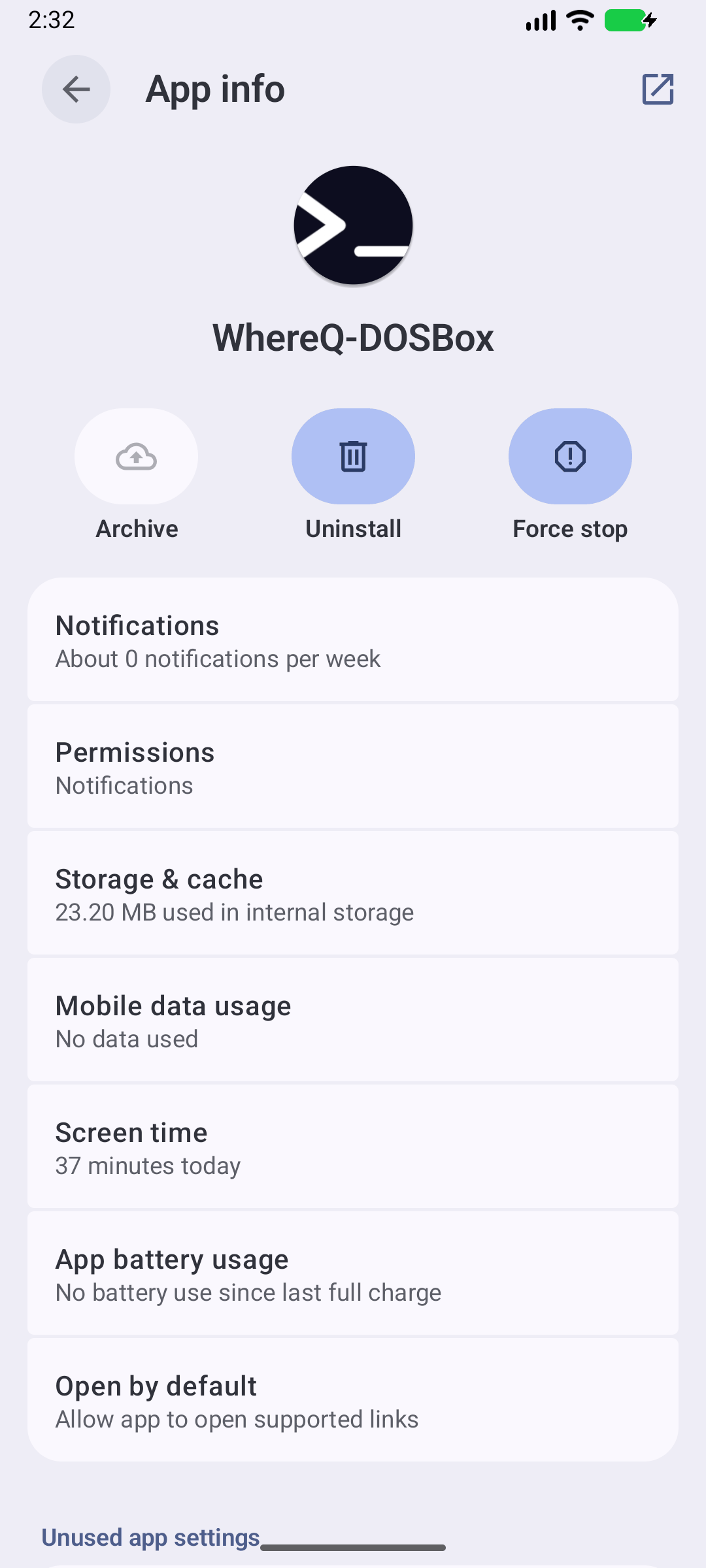
29The Android App info page for WhereQ-DOSBox.
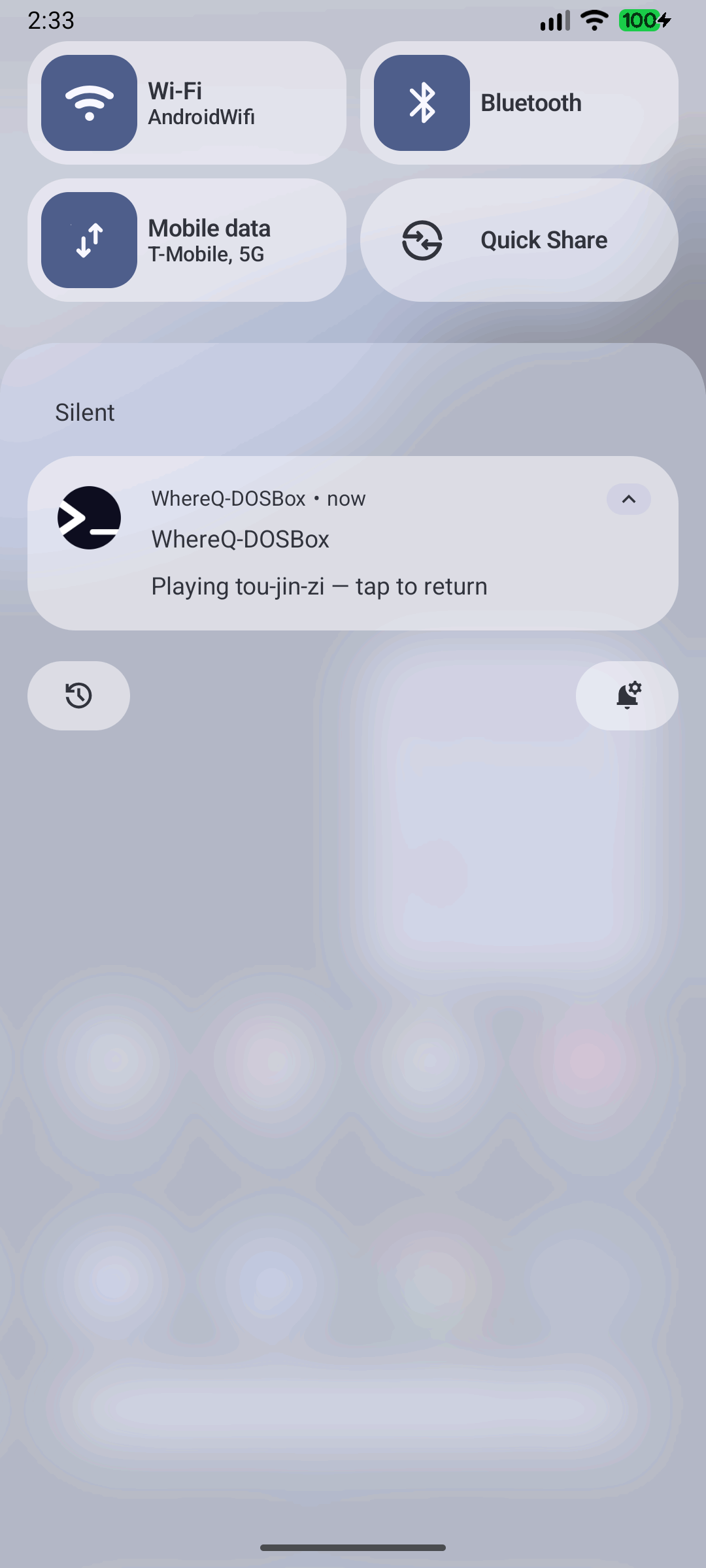
30The “Playing tou-jin-zi — tap to return” notification: the service that keeps the machine resident while you are in another app.
31Back in the game after tapping the notification. The emulator never stopped.
32On an 18:9 screen the letter keys get tighter; the d-pad and the action keys keep their size.
3.0More DOS, out in the world
PC Legends is one shelf among many. These are the collections, stores and emulators the DOS community has built — good places to find a game that is not here, buy a polished re-release, or just play something in the browser.